The pre-chat surface visitors land on — a stack of blocks you arrange, from a greeting to FAQs to product cards.
The welcome screen is what a visitor sees when they open the widget before they have said anything. You build it from a stack of blocks.
Open Experience, then Welcome screen under More customization. It opens as its own page with the live preview beside it.
A new agent starts with this switched off, so visitors land straight in the conversation. Turn it on when you want a menu in front of the chat.
This used to be called the Home Screen. Same idea, rebuilt: more block types, templates to start from, and click-to-edit on the preview.
Starting from a template
An empty welcome screen offers four templates — Support, Sales, Ecommerce, Booking — plus Start from scratch.
Nothing is seeded until you pick. That is deliberate: a screen that seeded itself on load would leave you on an already-dirty page warning about changes you never made.
The nine blocks
| Block | What it is |
|---|---|
| Welcome | The greeting at the top. Pinned first, one only, and you can delete it if you would rather open with something else. |
| Announcement | A short highlighted notice — a launch, an outage, opening hours. |
| Quick questions | Tappable questions that open the chat with that question already sent. |
| Buttons | Links out to your own pages. |
| FAQ | Question and answer pairs that expand in place, without starting a chat. |
| Meeting | A prompt to schedule, wired to your Meetings setup. |
| Products | Product cards you author. |
| Contact | Your contact details. |
| Divider | A rule, with an optional label. |
Drag to reorder. A block that would render empty — a Buttons block with no URLs, an FAQ with no pairs — is marked Not showing in the editor and is left out of the widget rather than rendering as a gap.
Click to edit
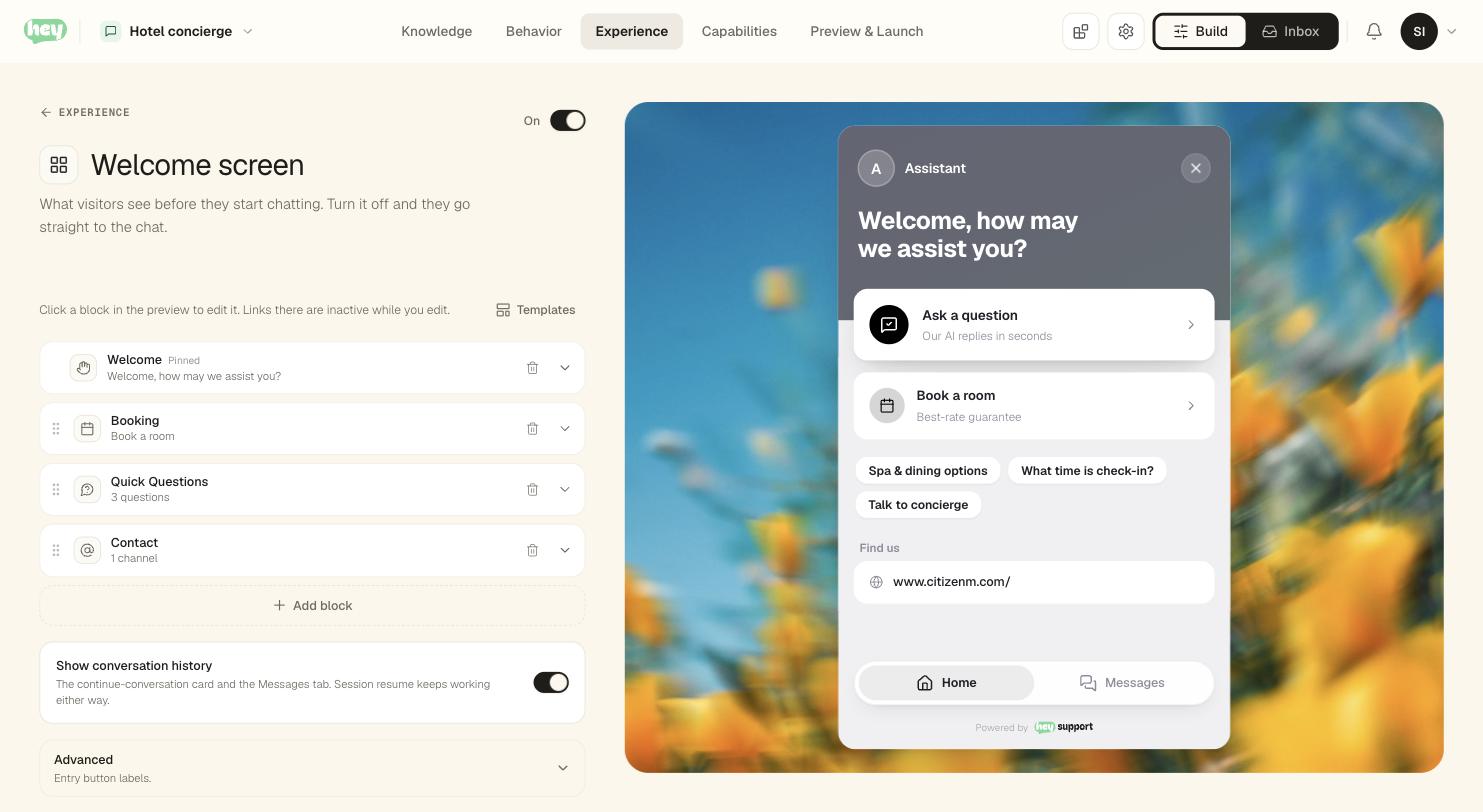
Clicking a block in the preview selects it in the editor, and selecting a block in the editor highlights it in the preview. The preview is the real widget, so clicks on links and quick questions are intercepted rather than followed — otherwise editing a Buttons block would navigate the preview away.
Conversation history
A switch in the block list rather than a buried setting, because it changes the widget's shape: turning it off removes the resume card, the bottom tab bar and the history item from the menu. You can see it happen in the preview beside you.
Session resume is separate and stays on — a visitor coming back within 24 hours still lands in their conversation.
Advanced
Only the entry-button labels — the wording on the button that opens the chat.