Read every conversation, jump in as a human, add notes and tags, and improve answers over time.
The Inbox is where you see what the agent is actually doing. Every visitor conversation lands here, whether the agent handled it on its own or a visitor asked for a person. Open Inbox from the top navigation.
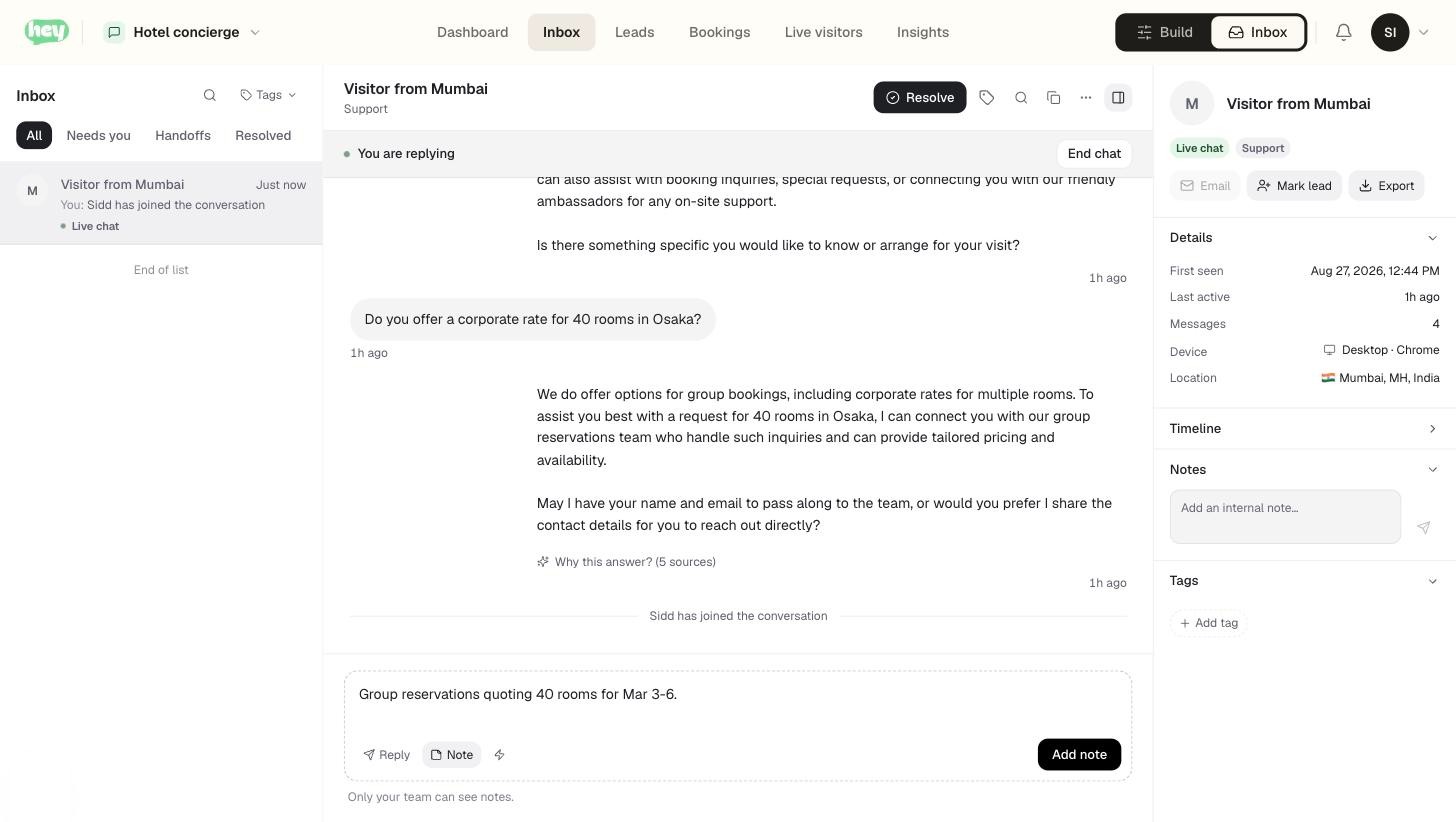
The left side is the list of conversations; the right side is the thread you have open.
Status
Each conversation has a status:
- Open is active or unresolved.
- Waiting means it is waiting for a human reply after a handoff.
- Resolved means it is done. The agent can resolve simple chats on its own, and you can set the status by hand.
Taking over
When a visitor needs a person, or you just want to step in, you can take over the conversation and reply yourself. The visitor sees that a human joined. While you are handling it, the agent stays out of the way. This is the other half of human handoff.
Replying
The composer has two modes:
- Reply sends a message to the visitor.
- Note adds an internal note that only your team sees. Notes are good for context, like "called back, left a voicemail." They do not count toward the conversation's message total.
Two tools speed up replies:
- Canned responses. Type
/to pull up saved replies and insert one. They can fill in the visitor's name and other details automatically. Manage them in Workspace settings. - Tags. Label conversations so you can filter them later. Tags come from a shared library that grows as your team uses them, and the agent can suggest tags for a conversation.
Improve this answer
When the agent gives a weak answer, open Improve this answer on that message. You provide the correct response, and it feeds straight back into the agent's knowledge, either as a quick answer or as a knowledge chunk. Over time this is how the agent gets sharper on the questions your customers actually ask.
Visitor details
The sidebar next to a thread shows what we know about the visitor: their device, location, where they came from, when they first and last visited, and any details they gave, like a phone number or a captured lead. If the conversation is on a connected Shopify or WooCommerce store, their order context shows here too.
Approvals
If an AI Action needs a human to approve it, the request appears in the thread as a card. Approve or deny it, and the visitor gets the result.