Put your agent on your website as a chat bubble, a Center stage ask bar or a hosted Help page, and restrict where it runs
Open Go live from the top navigation. Three cards show where your agent can meet customers: On your website, Messaging apps and Email and phone. Open On your website and choose an option: its details take the place of the preview, starting with how it works in three steps, then the code or the settings it needs.
| Option | What visitors get |
|---|---|
| Chat bubble | The classic chat button in the corner of your site. |
| Center stage | An ask bar at the bottom of the page that opens into a wide chat. |
| Help page | A hosted full-page chat at hey.support/help/your-id. Share the link or a QR code. |
Under Messaging apps, the same agent answers on WhatsApp and Telegram on Growth and up. Email and phone lists options that are not available yet, so it has nothing to open.
Chat bubble
Open Chat bubble. Under Add it to your site, pick how the code gets there:
- Paste the code: shows the one line, with Copy code. Paste it once, into your site's header or its "custom code" setting, and it shows on every page.
- Use a plugin: on WordPress or WooCommerce, skip the code. On Shopify, the same line goes into your theme. See Plugins and store installs.
- Send to your developer: we email the code and the steps to whoever manages your site.
The code is one line:
<script src="https://www.hey.support/api/chat/embed.js" data-chatbot-id="YOUR_ID" defer></script>Everything about the look is set in Hey Support, so the code never changes when you tweak the agent.
Under Check it works, enter your site's address and choose Open and check. We open your site in a new tab and watch for your agent to load.
Center stage
Center stage runs on the same code. Open it and turn on Use instead of the bubble: no reinstall. Add it to your site below the switches offers the same three ways. Open with ⌘K or / gives visitors a keyboard shortcut to the ask bar.
To mix the two, open Only on some pages: add data-display="center" to the code on a page that should show Center stage, or data-display="bubble" to keep the bubble there. The attribute wins over the setting on that page only.
Choose a style
In the Center stage details, the Style row sets the look. A tap saves at once. Until you pick one, your agent keeps the original look.
Help page
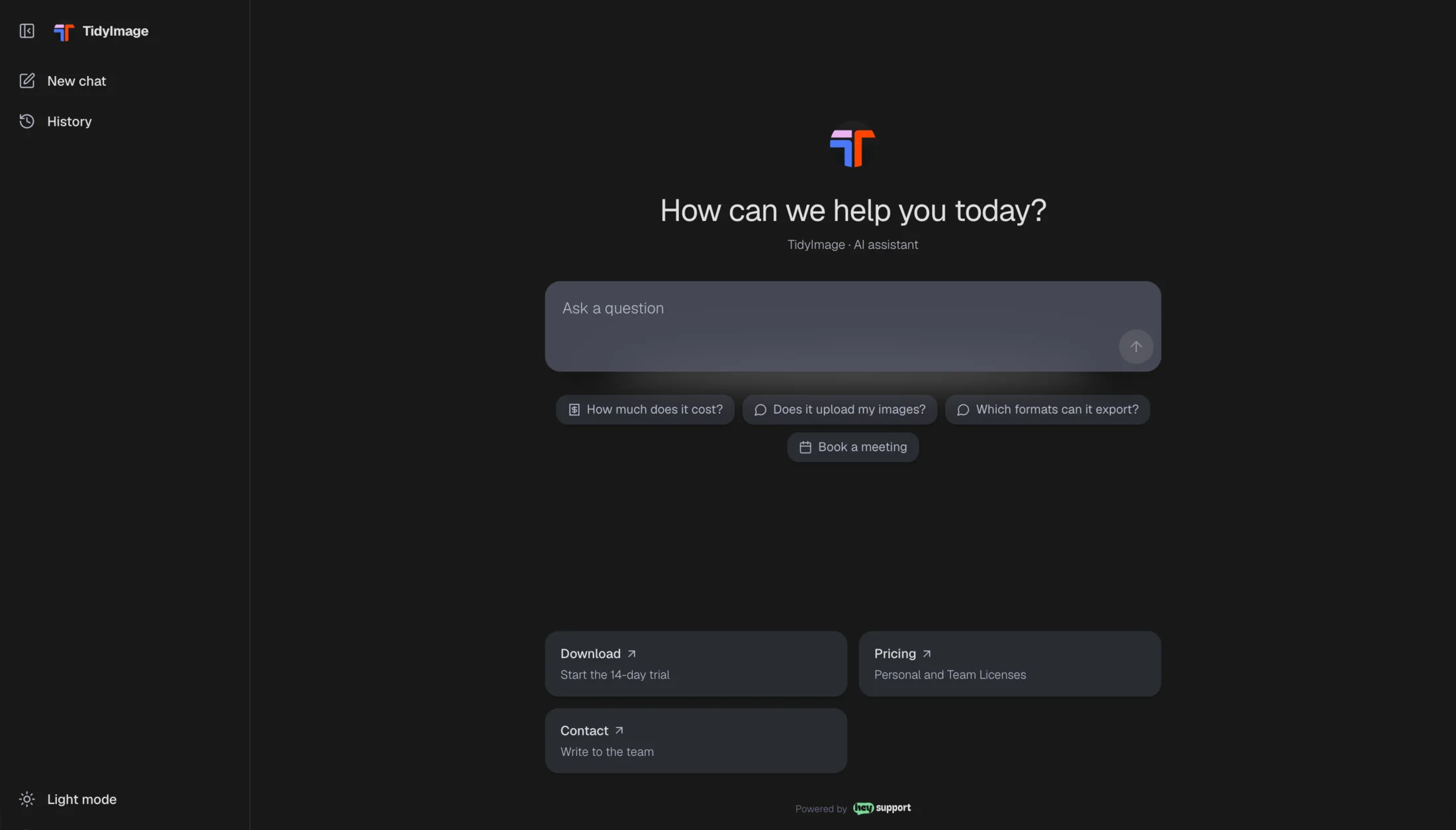
The Help page is hosted by us, so there is nothing to install. Switch it on at the top of its details and the status reads Live · Anyone with the link can chat. Off, the link shows a not-found page. Under the thumbnail is the link, with buttons to copy it, open it and download a QR code.
| Group | Rows |
|---|---|
| Appearance | Theme (Auto, Light or Dark), Visitors can switch theme, Logo and Heading. |
| On the page | Suggested questions, and Link cards (up to four). |
| Sharing | Show in search results (off unless you turn it on), Browser tab for the tab's title and icon, and Embed on your site for an iframe snippet that places the page inside your own site. |
Switches save as you change them. Text and images save with Save at the bottom of the details.
Only on these domains
In the Chat bubble and Center stage details, the Only on these domains fold restricts where the code works. With no domain listed, the widget serves anywhere the code is pasted.
The moment one domain is listed, the widget paints nothing on any domain not on the list, with only a browser-console message to say why. A typo looks exactly like the agent being down. Add every host it should run on, staging and preview hosts included.
Knowing it is live
An option reads Live on yoursite.com once real traffic arrives: the first time a visitor loads a page with the code. Your own visits from the dashboard do not count, and neither does traffic to the Help page.